Thresholds
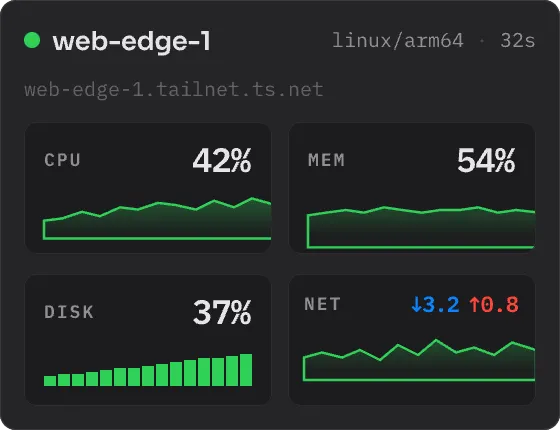
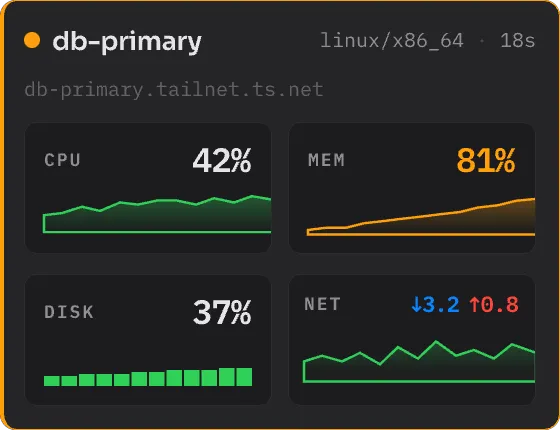
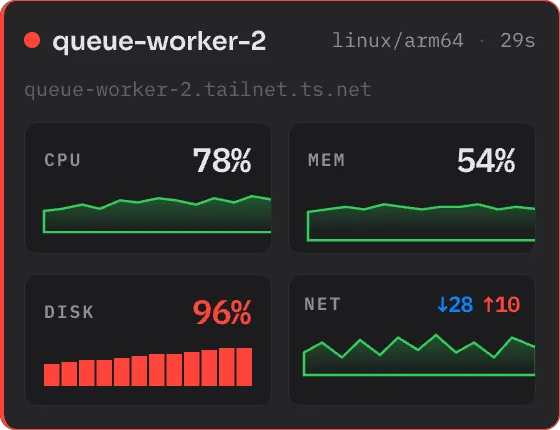
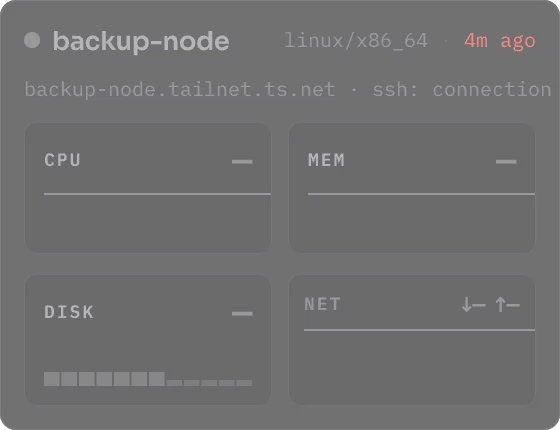
Each metric has two levels: warn and critical. When a value is at or above a level, the card shows the value in the color of that level.
| Normal | Warn | Critical | Offline |
|---|---|---|---|
 |
 |
 |
 |
To change the levels, open the settings and select the Alerts tab.
Default levels
Section titled “Default levels”| Metric | Warn | Critical | Alert after | Notify |
|---|---|---|---|---|
| CPU | 75% | 90% | 5 min | Critical |
| Memory | 75% | 90% | 2 min | Warn + Critical |
| Disk | 85% | 95% | At once | Warn + Critical |
Host health
Section titled “Host health”Towertail also checks the health of each host. All health checks use one Alert after time. The default is 5 minutes. The default Notify setting is Warn + Critical.
| Check | Warn | Critical |
|---|---|---|
| Processes | 5,000 | 20,000 |
| Zombies | 200 | 2,000 |
| PID use | 70% | 90% |
| Open files | 80% | 95% |
| Inodes | 85% | 95% |
| Memory pressure (PSI avg10) | 10% | 20% |
| I/O pressure (PSI avg10, full) | 20% | 40% |
The last five checks are below More checks in the Alerts tab.
Alert timing
Section titled “Alert timing”The card always shows the live value. The alert rules control the notifications and the color of the menu-bar icon.
- Alert after is the time that a metric must stay over the level before it alerts.
- Over the line for at least is the part of that time that must be over the level. The default is 80%. Thus a short drop below the level does not start the time again.
Notifications
Section titled “Notifications”Notifications are off by default.
- Open the settings and select the Alerts tab.
- In Notify on, select Critical or Warn + Critical.
- In Repeat the same alert at most every, select a time. The default is 1 min.
macOS asks for permission before the first notification. Click Allow.
Towertail sends a notification only when a metric goes up a level: from normal to warn, from normal to critical, or from warn to critical. A notification for CPU or memory shows the two processes that use the most.
Click a notification to open the full view of that server.
After your Mac wakes up or the network comes back, Towertail waits before it sends notifications. The default wait is 15 seconds. To change it, use Post-wake grace in the General tab.
Snooze a server
Section titled “Snooze a server”To stop the notifications of one server for some time, right-click its card in the popover. Select Snooze notifications and a time, from 15 minutes to 1 week. To stop the snooze, right-click the card and select Clear snooze.
Levels for one server
Section titled “Levels for one server”A server can override the default levels.
- Open the settings and select the Servers tab.
- Select the server.
- Select Alerts at the top of the server details.
- Click Override next to a metric, and change the levels.
Click Revert to use the default levels again. Turn on Custom alert timing to give the server its own alert timing.
For each server, you can also set Notify on and Tint menu-bar icon on. Use Critical for a server that is often in warn.
The Server overrides section of the Alerts tab shows all servers that override a default.
To set the default levels and the alert timing back to the factory values, click Restore Defaults in the Alerts tab. This does not change the server overrides.