Add hosts
Towertail connects to each server over SSH with a normal user account. It does not need root. The SSH server must allow SFTP, because Towertail copies the sampler with SFTP.
Prepare an SSH key
Section titled “Prepare an SSH key”Towertail reads these private key files on your Mac:
~/.ssh/id_ed25519~/.ssh/id_rsa
If you do not have a key, do these steps in Terminal:
-
Make an ed25519 key. Push Enter to accept the defaults:
Terminal window ssh-keygen -t ed25519 -
Copy the public key to the server:
Terminal window ssh-copy-id -i ~/.ssh/id_ed25519.pub user@host -
Make sure that the login does not ask for a password:
Terminal window ssh user@host "echo ok"
In Towertail, the Key setup help button shows the same commands for the server that you add.
Add a server
Section titled “Add a server”- Click the Towertail icon in the menu bar.
- Click the gear icon to open the settings.
- Select the Servers tab.
- Click the + button below the server list.
- Type a Name for the server.
- In Kind, select SSH.
- In Address, type the user, the host name or IP address, and the port. The default port is 22.
- In Sign in with, select SSH key or Password. Towertail keeps a password in the macOS Keychain.
- Click Add.
- With the new server selected, click Test.
The Test step does the first connection:
- Towertail connects to the server.
- It finds the operating system and the CPU architecture.
- It copies the sampler to
~/.towertail/towertail-sampleron the server. - It runs the sampler one time and shows the result.
After a good test, the server card shows live values in the popover.
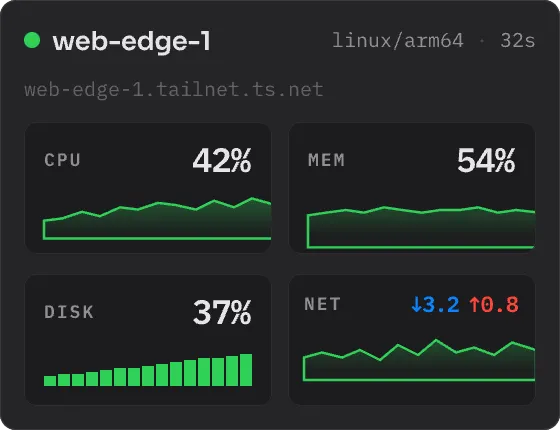
To add many servers at one time, click Import… in the Servers tab. You can import from Tailscale, a CSV or TSV file, or a pasted list with one host on each line. For Tailscale, read Tailscale.
Host keys
Section titled “Host keys”At the first connection, Towertail accepts the host key of the server and keeps its fingerprint. If the host key changes later, Towertail refuses the connection.
If you replace the server and its key changes, select the server in the Servers tab. Then click Forget next to Host key. The next connection accepts the new key.
Poll interval
Section titled “Poll interval”Towertail polls each SSH server every 10 seconds by default. It polls This Mac every 2 seconds.
To change the interval, open the settings and select the General tab. Use the Polling section. The range is 1 to 300 seconds.
Server details
Section titled “Server details”Click a metric on a server card to open the full view of that server. The full view shows charts, the processes and the open ports.
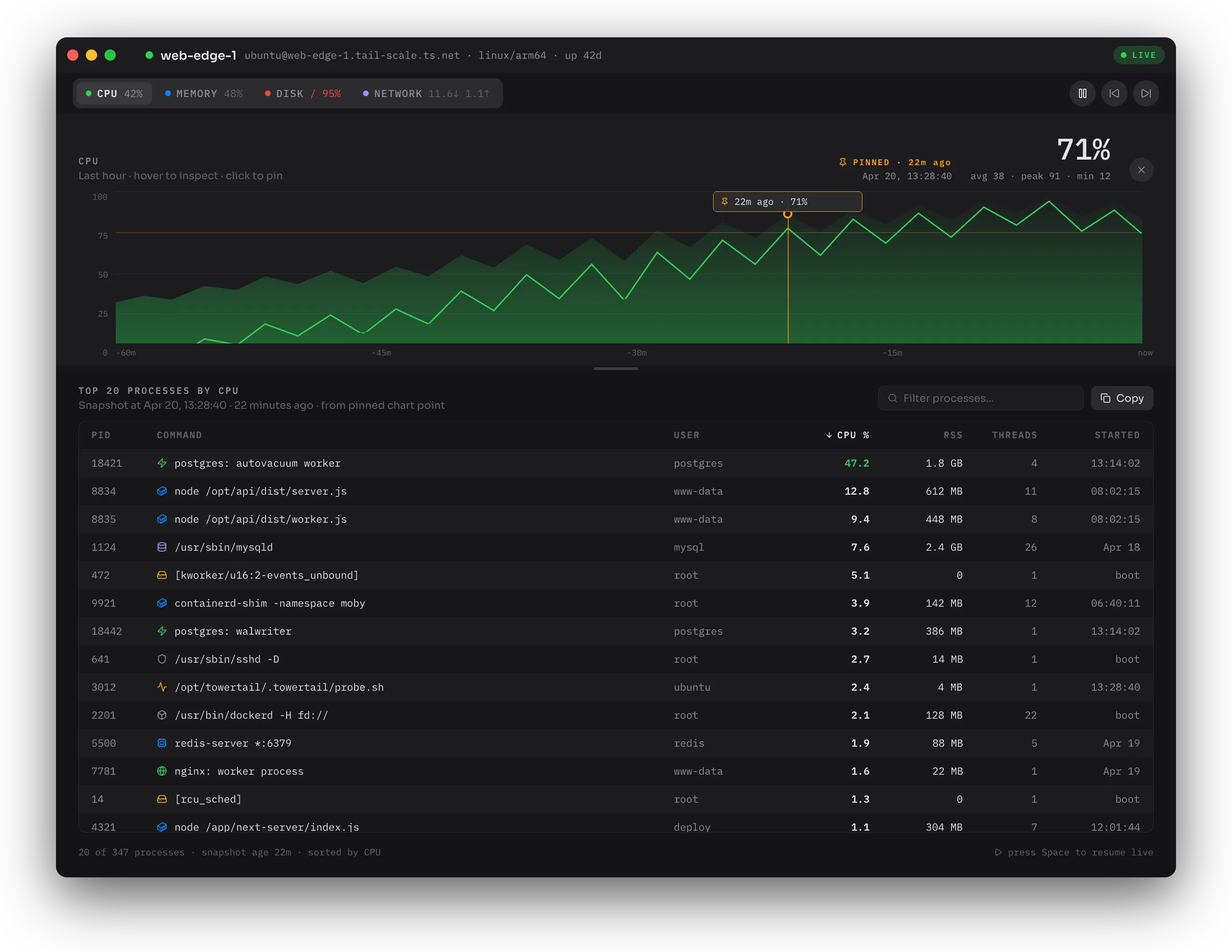
To stop the polls of a server but keep it in the list, select the server in the Servers tab. Then turn off Monitor this server.